How to Remove GPU – Full Step-by-Step Guide in 2025!
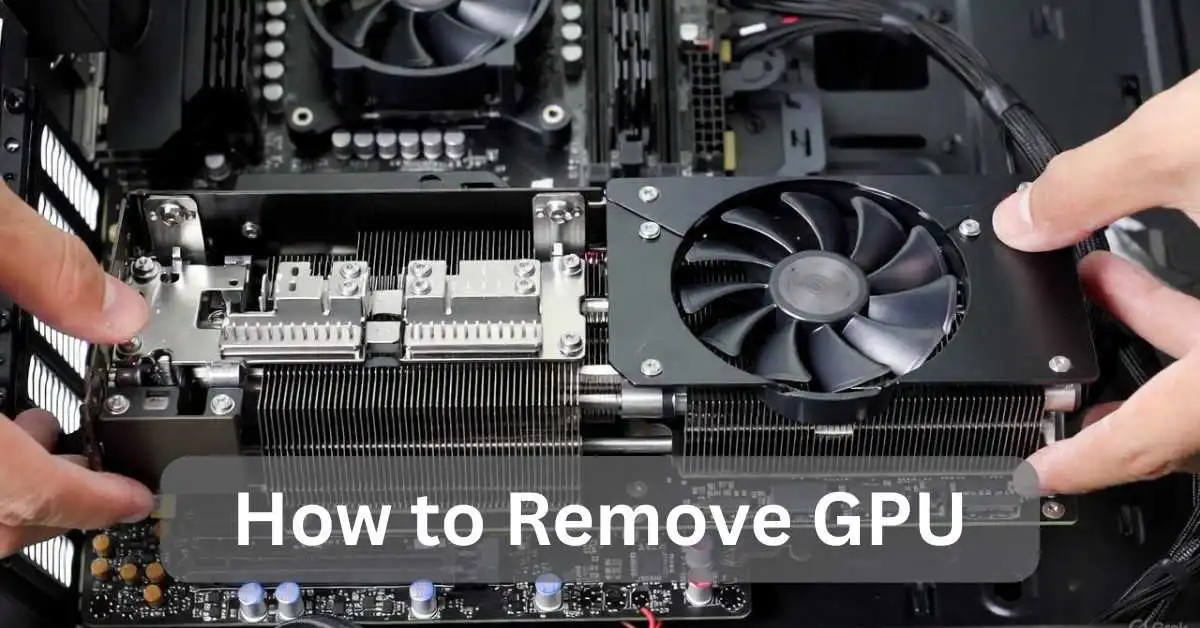
To safely remove a GPU, shut down the PC, turn off the power supply, and unplug the cord. After that, ground yourself by touching the case, disconnect the GPU power cables, release the PCIe latch, gently wiggle the card to loosen it, and lift it straight out. These small steps protect the slot and help you remove the graphics card without any damage.
This updated 2025 guide explains how to remove GPU and reinstall it safely, even if you have never opened a PC before. The goal is to make the whole process simple, clear, and completely stress-free.
Can You Remove GPU While PC Is On?
Absolutely not. You should never try to remove a graphics card while the system is powered on. Unlike USB devices, GPUs are not hot-swappable. Pulling a GPU from a live system can instantly damage:
- The GPU itself
- The PCIe slot
- The motherboard
- The power supply
Always fully shut down Windows, flip the power supply switch, and wait at least 30 seconds before touching anything inside the case. This short pause ensures that all electrical components have fully discharged.
Also Read: CPU Over Voltage Error – Causes, Solutions & Prevention!
What Tools Do You Need in 2025?

Good news removing a GPU does not require a large toolbox. In 2025, you really only need four basic items:
- Screwdriver: A magnetic tip helps prevent screws from falling inside the case.
- Anti-static wrist strap: Clips onto the metal part of the case to prevent static buildup.
- A plastic spudger or an old credit card: Handy for reaching tight PCIe latches.
- GPU support brace: Crucial for heavy RTX 5080/5090-class cards to prevent sagging.
Everything else is optional, but these four items make the job much faster and safer.
How to Avoid Damaging Your Motherboard?
Most motherboard or PCIe slot accidents happen when a GPU is pulled out at the wrong angle. Here’s how to avoid them:
Two hands always — no exceptions:
Use one hand to steady the GPU while the other gently presses the latch. This reduces stress on the slot and prevents bending.
Keep the card straight:
Even a slight sideways twist can bend slot pins. Lifting straight up protects your motherboard completely.
Use a support brace for heavier GPUs:
Top-end cards like the RTX 5090 are heavy. A simple brace or even a sturdy LEGO block can prevent stress on the PCIe slot while removing or installing the card.
Also Read: How to Check Motherboard Damage From GPU (Signs & Fixes)
Should You Uninstall Drivers First?
If you are switching GPU brands for example, NVIDIA to AMD Radeon, uninstall your old drivers first. The safest way is to use Display Driver Uninstaller (DDU) in Safe Mode. Choose “Clean and restart,” and your system will be ready for the new GPU without conflicts or black screen issues.
If your replacement GPU is from the same brand, uninstalling drivers is usually optional.
Also Read: How to Reduce CPU Usage While Gaming – 2025 Tips
How to Remove Your Graphics Card in 8 Steps:

Even if this is your first time, these steps will make the process quick and safe:
1. Full shutdown & unplug:
Shut down Windows completely. Holding Shift while clicking “Shut Down” ensures fast-startup doesn’t interfere. Once off, unplug the PSU.
2. Open the side panel:
Remove the screws or thumbscrews and slide off the panel. Keep screws safe.
3. Disconnect power cables first:
Press the small clip on each PCIe connector (6-pin, 8-pin, 12-pin, or 12V-2×6) and pull gently. Never yank.
4. Press the PCIe latch:
Locate the plastic latch at the end of the PCIe slot and press it downward. This unlocks the GPU so it can slide out smoothly.
5. Small 2mm left-right movement:
If the card feels stuck, gently wiggle it just a couple of millimeters left and right. Stop immediately if it resists forcing it can bend the slot pins.
6. Pull straight up:
Grasp the GPU with both hands and lift it upward in a straight, even motion. Keeping the card level is key to protecting the PCIe slot and motherboard.
7. Remove bracket screws:
At the back of the case, remove one or two screws holding the card in place. Now the GPU slides out freely.
8. Place card in anti-static bag:
Store the removed GPU in an anti-static bag. This protects it from dust, moisture, and static electricity.
How Do I Unstick a GPU Quickly in 2025?
With modern PCIe 5.0 latches and heavier GPUs, stuck cards are common. Here’s how to free them safely:
- Plastic spudger trick: Use a non-metal tool to gently press the PCIe latch if your fingers can’t reach.
- Remove the cooler shroud first: Many RTX 40/50-series cards allow shroud removal by taking out a few screws. This gives more room to access the latch.
- Tiny wiggle + straight pull: Move the card just 2mm side-to-side, then lift straight up. This frees most stuck GPUs without stressing the slot.
How to Remove GPU from Laptop:
Most modern laptops have soldered GPUs. Only a few specialized models allow GPU upgrades, including:
- Some older Alienware laptops
- Select Clevo-based systems
- Modular Framework Laptop (depending on version)
For about 99% of laptops today, GPUs cannot be removed like a desktop graphics card.
How to Clean the Old Card Properly:

If you’re storing or reselling your GPU:
- Use a soft brush or electric duster on low power.
- Clean stubborn spots with 70% isopropyl alcohol and a cotton swab.
- Avoid vacuum cleaners static can damage the card.
- Let the GPU air-dry for ~5 minutes.
- Repaste the GPU only if it previously ran hot.
How to Reinstall a New Graphics Card Safely:
Correct alignment is critical. Misaligned cards can cause no display, fan issues, or no-boot situations.
- Check PCIe slot and clear dust: Ensure nothing blocks the slot.
- Align GPU perfectly: Hold it with both hands and position the gold pins over the PCIe slot. Card should be level.
- Push down gently until it clicks: If it does not click, realign.
- Install bracket screws: Secure the GPU to prevent sagging.
- Connect power cables last: Ensure firm clicks.
- Final checks: Latch locked, cables secure, no wires touching fans.
- First boot: Connect monitor, power on, install latest drivers.
For extra clarity, you can follow the official AMD GPU Installation Guide and the ASUS GPU Install Guide while reinstalling your graphics card.
New GPU but No Display? Try These Proven Fixes:
Reseat the card: Power off, remove GPU, clean slot, reinstall firmly.
Clear CMOS: Remove motherboard battery for 10 seconds or use a jumper.
Install drivers from scratch: Run DDU if skipped earlier, then reinstall clean drivers.
Also Read: CPU Fan Error on Boot – Fix It Now 2025!
Common Mistakes to Avoid:
- Don’t remove while PC is on – risks shock and damage.
- Avoid touching gold contacts. Use proper grounding.
- From X discussions, ignoring driver uninstall leads to boot issues. Always clean software.
- Forcing stuck cards can break slots. Patience is key
In summary, mastering how to remove GPU unlocks better PC performance without risks. You’ve learned prep, steps, and fixes. Now, apply these for your upgrade or clean.
Conclusion:
Now you have a complete understanding of how to remove GPU safely in 2025, whether it is a compact RTX 3060 or a massive next-gen RTX 5090. Following these steps prevents bent pins, loose cables, and frustrating black screens. Bookmark this guide for future upgrades, share with friends, and drop your GPU model below for tailored advice.
FAQs:
Can I remove a GPU while the PC is on?
Doing so can instantly damage hardware.
Do I need to uninstall drivers before removing GPU?
Only when switching between NVIDIA and AMD.
Why is my new RTX 5090 not displaying anything?
Usually mis-seated cables or leftover drivers. A reseat + DDU typically fixes it.
Can you remove the graphics card from a laptop?
Only a few older/special models allow it; ~99% are soldered.
Is it safe to touch GPU without an anti-static strap?
Possible but risky. Always stay grounded by touching a case metal.