Why Is My GPU Usage So High on Windows? Causes & Fixes (2025)
High GPU usage on Windows can happen during gaming, everyday tasks, or even while the system is idle. Common reasons include background applications, driver issues, malware, or misconfigured graphics settings.
If you are asking why is my GPU usage so high on Windows, this guide explains the most common causes and how to fix them step by step.
What Is GPU Usage and Why Does It Matter?
GPU usage is just the percentage showing how much your graphics processing unit is working at any moment. Think of it as a workload gauge for the hardware that powers everything visual on your screen games, videos, and even your desktop animations.
Monitoring it helps catch issues early, avoid overheating (which I have learned the hard way can lead to throttling), and keep your system running efficiently for years.
What Is Normal vs. Abnormal Usage?
On a truly idle PC no apps open, just the desktop GPU usage typically ranges between 0-10%, depending on your setup, like multiple monitors or animated wallpapers. For light stuff like browsing or documents, 20-40% feels about right. When you are gaming heavily or editing videos, spiking to 80-100% is totally expected and fine.
The issue arises when it jumps high out of nowhere, even on simple tasks or when idle. That’s usually a sign of driver glitches, hidden apps, or something more dangerous.
Basics of GPU Functionality:
Your GPU handles rendering all the visual images, videos, smooth animations, and complex 3D graphics in games. It’s designed for massive multiple processing, so it performs better at heavy graphics work compared to your CPU.
High usage is normal under load, but unexplained constant pressure? That can accelerate wear, crank up heat, and shorten life.
Impact on System Performance:
Sudden high GPU usage often makes everything feel off stuttery games, lag when switching apps, or random hangs. On laptops, it kills battery fast and turns your laptop into a heater. I have noticed on my own machine during idle spikes; fixing made multitasking way snappier and cooler.
When High Usage Becomes a Problem:
Maxing out the GPU during challenging games or renders? Totally normal the card handles that fine. But staying high when idle or doing light tasks means trouble: crashes, loud fans, extra heat, and even shorter card life.
Common Causes of High GPU Usage:

A lot of things can suddenly make your GPU work harder than usual finding the exact cause is what fixes it quickest.
Outdated or buggy drivers top the list they can mishandle even basic tasks, leading to spikes. Recent Windows updates or app conflicts don’t help.
Background stuff like animated wallpapers, browser hardware acceleration, or apps like Discord/Spotify quietly pumping resources is another big one. Overheating from dust makes work harder. CPU bottlenecks can keep the GPU waiting and loaded.
Here’s a quick overview of leading causes:
| Cause | Description | Typical Impact on Usage |
| Outdated Drivers | Buggy or incompatible versions | Random spikes up to 50%+ |
| Background Apps | Hardware acceleration or hidden tasks | Constant 20-60% even idle |
| Malware | Crypto-mining scripts | Near 100% in background |
| Overheating | Dust or poor cooling | Throttling leads to higher load |
How to Monitor Your GPU Usage?
First things first: check what’s actually happening.
Using Built-in Windows Tools:
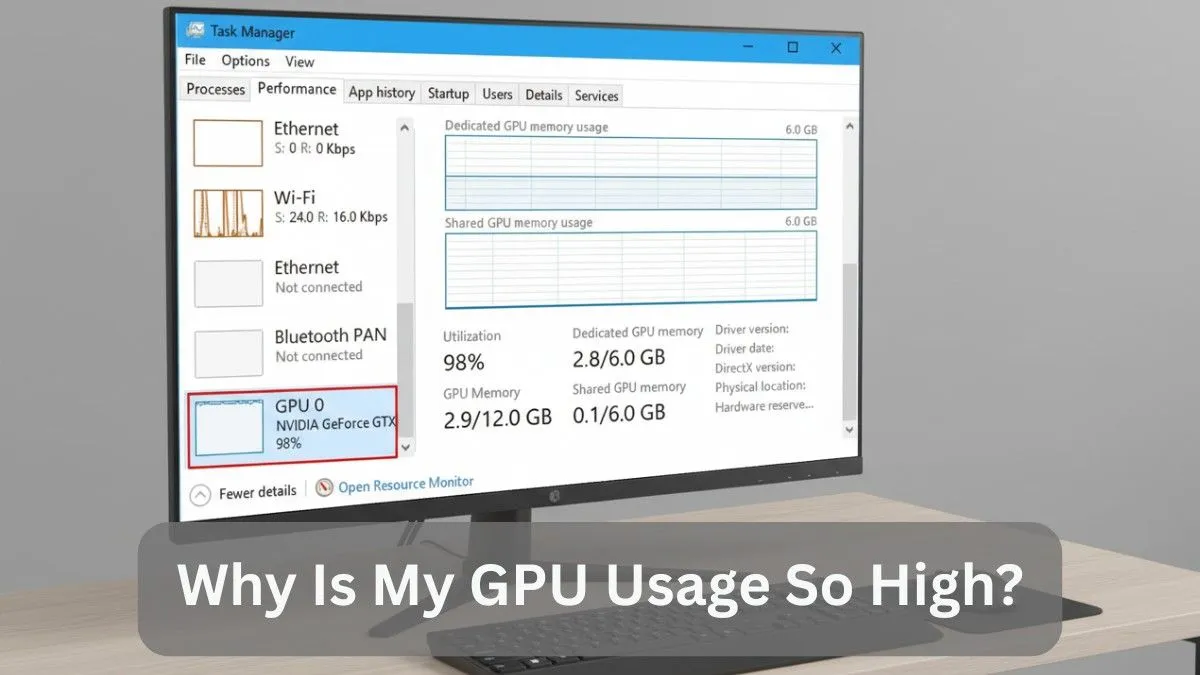
Just hit Ctrl + Shift + Esc for Task Manager. Jump to the Performance tab, click GPU, and you will see real-time graphs for usage, memory, and temps.
Third-Party Software Options:
For deeper insights, grab free tools like GPU-Z, awesome for detailed sensors and temps or MSI Afterburner, great for in-game overlays and logging.
Updating and Reinstalling GPU Drivers:
Outdated or buggy drivers are one of the most common causes of high GPU usage. Installing the latest stable drivers often fixes performance spikes, crashes, and random usage jumps.
As of late December 2025, NVIDIA’s Game Ready 591.59 WHQL is the latest stable release, with hotfix 591.67 available for specific issues. AMD users should install Adrenalin Edition 25.12.1 for the newest fixes and optimizations.
Step-by-Step Driver Update:
Go to the official NVIDIA or AMD website, download the correct driver for your GPU model, run the installer, choose Custom or Clean Install, and restart your PC once installation finishes.
Clean Reinstallation Tips:
If problems continue, boot into Safe Mode and use Display Driver Uninstaller (DDU) to entirely remove old driver files before reinstalling.
You can also pause Windows automatic driver updates if they keep installing conflicting versions.
Installing the proper drivers for your hardware is critical using incorrect or outdated versions can cause unnecessary GPU load and instability, similar to issues explained in our guide on CPU driver requirements in Windows.
Scanning for Malware and Viruses:
Malware like crypto-miners is a sneaky cause of high GPU usage they run hidden in the background, making fans loud and temps high without any visible signs.
- Run a full scan: Start with Windows Defender. For backup, use free Malwarebytes. I have found miners this way before.
- Spot suspicious processes: In Task Manager, sort by GPU usage. See something odd? Google it quickly, but let antivirus remove it safely.
- Prevent it next time: Keep antivirus updated, avoid sketchy downloads, and always choose custom install to skip extras.
Adjusting Graphics and Game Settings:

Quick tweaks in your game settings can fix high GPU use fast. It makes games run cooler and smoother without looking bad.
Lowering In-Game Options:
Go to the game menu. Turn down resolution a bit, switch off ray tracing, or change from Ultra to High. Looks good still, but GPU works less hard.
Enabling Frame Limits:
Games often make way too many frames per second. Set a limit to 60 or your screen’s refresh rate. Cuts extra work and keeps things cool.
Balancing Quality and Performance:
Turn on NVIDIA DLSS or AMD FSR if your card can do it. Games look sharp but use 30-40% less GPU power. Made my games super smooth last time!
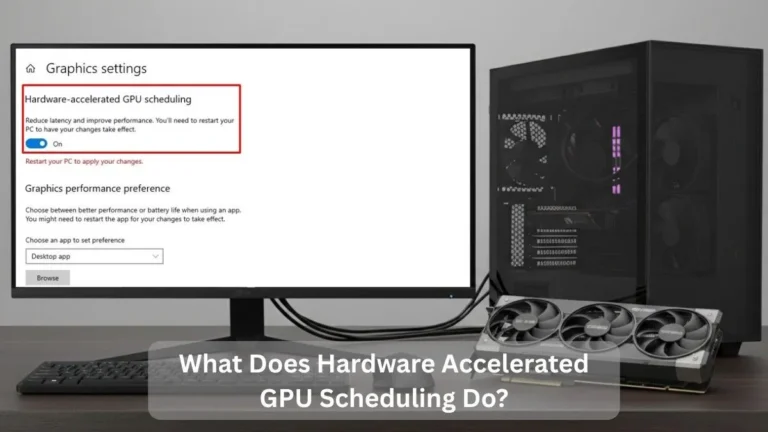
Disabling Hardware Acceleration:
Apps like your browser or Discord use the GPU to make scrolling and videos feel nice and smooth that’s hardware acceleration. Most of the time, no problem but now and then, glitches keep the GPU busy even when you are not really using it. Fans start making noise for nothing.
Open Task Manager and if you see Chrome, Edge, Discord, or whatever eating GPU while everything’s quiet, just head to that app’s settings, look for hardware acceleration or use GPU, switch off, and restart the app.
Checking for Hardware Problems:
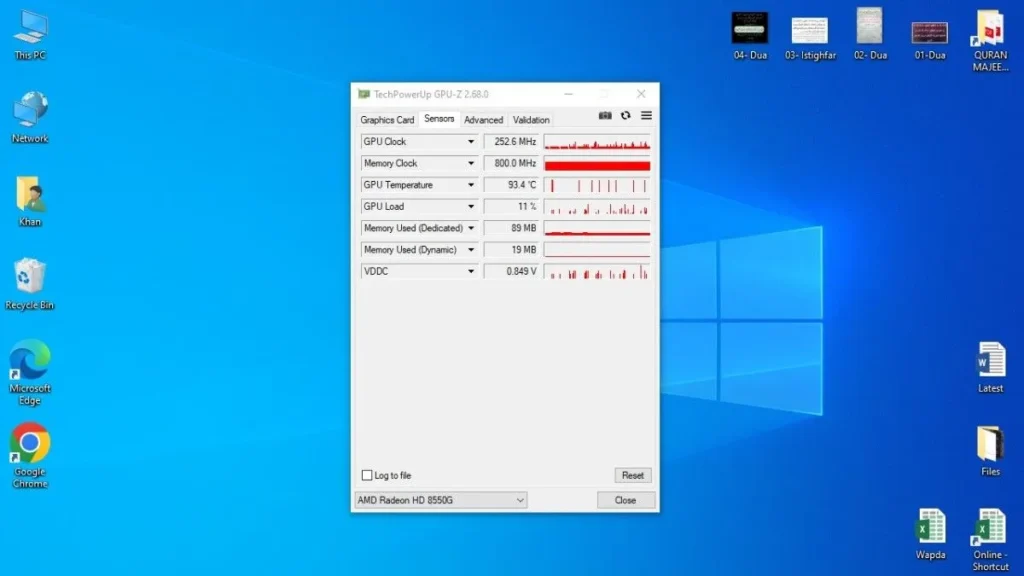
If software fixes didn’t sort out the problem, the problem might be with the hardware itself. Don’t stress, usually something simple you can check.
Monitoring Temperatures:
Get GPU-Z (free download) and run it. Watch the temperature. If it is often over 85°C, that’s too hot the card might slow down or glitch to protect itself.
Cleaning Your System:
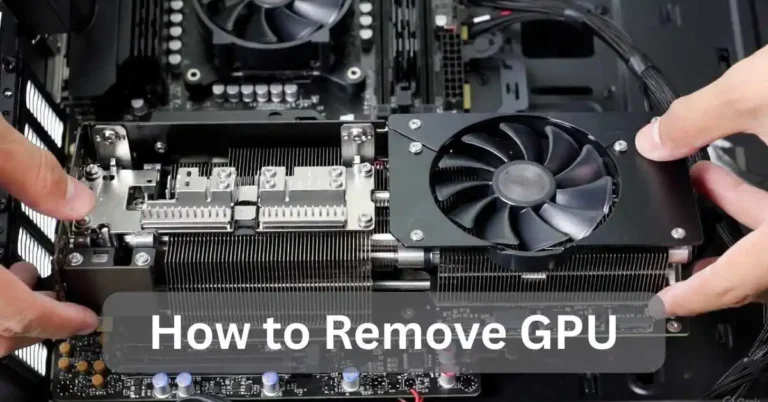
Dust blocks the air flow. Every 3-6 months, turn the PC off, open the case, and use a can of compressed air on the GPU and fans. I do this and my temps drop 10-15 degrees right away.
Verifying Connections and PSU:
Check that the power cables to the GPU are firmly plugged in. Also make sure your power supply delivers enough wattage for the graphics card, as an underpowered PSU can cause random crashes or instability.
If your GPU temperatures stay high, poor airflow or power issues could be the cause. In rare cases, it’s also helpful to know how to check motherboard damage caused by GPU when troubleshooting persistent problems.
Managing Background Processes:
Those invisible apps can quietly use GPU power in the background until performance drops.
Identifying Resource Hogs:
Open Task Manager and sort processes by GPU usage. If apps like live wallpapers or background visuals are consuming resources, closing them can make an immediate difference.
Disabling Startup Apps:
Go to Windows Settings, open the Apps section, then review Startup programs. Disable any apps you don’t need to launch automatically.
Multi-Monitor Considerations:
Using multiple displays increases GPU workload. If usage stays high, disconnect extra monitors temporarily to check whether they are contributing to the issue.
Advanced Techniques for Reduction:
If you are up for messing around a little more with settings, these tricks can seriously drop your GPU usage and heat without messing up your games or apps much. They are the ones I pull out when the basic stuff is not enough.
Undervolting and Underclocking:
Download MSI Afterburner for free. It’s not that scary. Lower the voltage or clock speeds a tad. Cuts down power and heat big time, and you almost notice any drop in FPS.
Lowering voltage reduces heat and power draw. You can apply similar principles to processors as well see this safe CPU undervolting guide for Intel and AMD.
Using DLSS or FSR:
In games that have, flip on DLSS if you have NVIDIA or FSR for AMD. They render the game lighter inside, then make it look nice and sharp so your GPU chills out 30-40% but everything still looks incredible and runs smoothly, a lifesaver in demanding games.
Power Management Settings:
Hop into NVIDIA Control Panel or AMD Software and switch to Balanced power mode instead of always maxed out. Keeps the card from going full throttle when it doesn’t need to. Super simple, but it helps a lot with idle usage.
Handling AI and Heavy Workloads:
With AI and machine-learning workloads growing fast in 2025, such as running local models, generating images, or heavy video editing, GPUs often stay under constant load.
Simple optimizations like better cooling, balanced power settings, and sensible workload limits help keep GPU usage stable during long sessions, without turning your fans into a jet engine.
If gaming is also pushing your system too hard, these tips to reduce system usage while gaming can help balance both CPU and GPU load.
FAQs:
Why is my GPU usage so high with no games open?
Often, background apps, outdated drivers, or malware. Update drivers, scan for threats, and check Task Manager.
Should I be worried if GPU usage is at 100%?
No, during heavy tasks designed for that. But watch temps and avoid constant 100% idle.
How to fix 100% GPU usage issue in Windows?
Start with driver updates/reinstalls, disable hardware acceleration, and close hogs via Task Manager.
Why does my GPU spike to 100% randomly?
Usually driver issues or hidden processes. Clean reinstall drivers and monitor with Afterburner.
Is GPU being utilized at 99% safe?
Yes for short gaming bursts, but monitor heat. Undervolt for longer sessions.
What causes high GPU usage in background?
Malware miners or enabled hardware acceleration run scans and disable where possible.
How to reduce GPU usage for better performance?
Optimize game settings, cap FPS, allow upscalers to, and manage power plans.
Conclusion:
Most high GPU usage comes from easy fixes like old drivers, dust buildup, or apps grabbing the GPU when they shouldn’t. Just update drivers, give your PC a clean, scan for malware, and tweak a few settings. I have sorted my own issues this way plenty of times. Fans go quiet, everything runs cooler and smoother.